Quick Start
Before adding the sample scripts to your scene, make sure to complete the following:
Enable Meshing Feature Support
- Go to Edit > Project Settings > OpenXR > OpenXR Feature Groups and enable the Magic Leap 2 Meshing Subsystem support
Enable Permissions
- Go to Edit > Project Settings > Magic Leap > Permissions and enable the SPATIAL_MAPPING Magic Leap permission
Scene Setup
- Create a new Basic 3D scene (File > New Scene)
- Delete the default Main Camera from the scene hierarchy
- Add the ML Rig prefab into the scene, found under Assets > Samples > ML Rig & Inputs > ML Rig. Use this guide for instructions on how to import the ML Rig into your assets.
- Expand the ML Rig and add a new Empty GameObject. Name it ARMeshManager and add the ARMeshManager Script to it.
- Select the ARMeshManager and add a Mesh Prefab to be displayed when the mesh is rendered. You can learn more about how to make this prefab in this Unity guide.
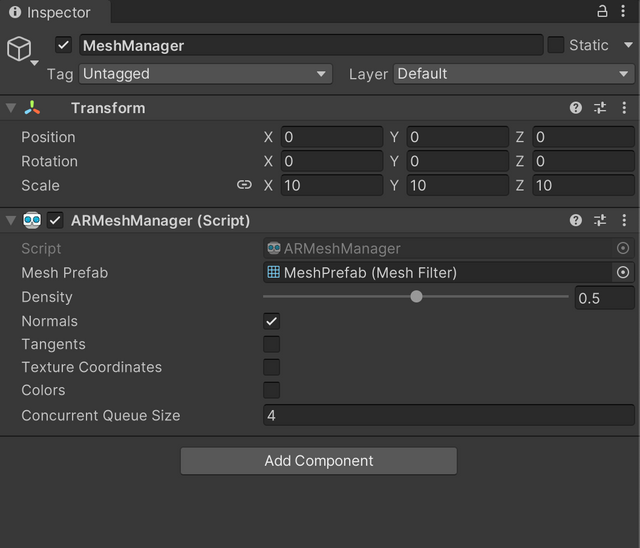
- Outside in the general scene hierarchy, add a new Empty GameObject titled MeshParent. This is the object you'll be attaching a custom script to for displaying the mesh. You can attach either of the scripts below to enable and display triangle or point cloud meshing in the scene.
Sample Scripts
Triangle Meshing
This script uses the ARMeshManager. Make sure to include the component it in your scene before using the example script below.
using System.Collections;
using UnityEngine;
using UnityEngine.XR;
using UnityEngine.XR.ARFoundation;
using UnityEngine.XR.MagicLeap;
using UnityEngine.XR.Management;
using UnityEngine.XR.OpenXR;
using MagicLeap.Android;
using MagicLeap.OpenXR.Features.Meshing;

public class MeshingTest : MonoBehaviour
{
    [SerializeField]
    private ARMeshManager meshManager;
    private MagicLeapMeshingFeature meshingFeature;

    // Search for the Mesh Manager and assign it automatically if it was not set in the inspector
    private void OnValidate()
    {
        if (meshManager == null)
        {
            meshManager = FindObjectOfType<ARMeshManager>();
        }
    }

    // Coroutine to initialize meshing after ensuring the necessary subsystems and permissions are available
    IEnumerator Start()
    {
        // Check if the ARMeshManager component is assigned, if not, try to find one in the scene
        if (meshManager == null)
        {
            Debug.LogError("No ARMeshManager component found. Disabling script.");
            enabled = false;
            yield break;
        }

        // Disable the mesh manager until permissions are granted
        meshManager.enabled = false;

        yield return new WaitUntil(IsMeshingSubsystemLoaded);

        // Magic Leap specific Meshing features can be accessed using this class
        meshingFeature = OpenXRSettings.Instance.GetFeature<MagicLeapMeshingFeature>();
        if (!meshingFeature.enabled)
        {
            Debug.LogError("MagicLeapMeshingFeature was not enabled. Disabling script");
            enabled = false;
            yield break;
        }

        Permissions.RequestPermission(Permissions.SpatialMapping, OnPermissionGranted, OnPermissionDenied, OnPermissionDenied);
    }

    private void OnPermissionGranted(string permission)
    {
        meshManager.enabled = true;
    }

    private void OnPermissionDenied(string permission)
    {
        Debug.LogError($"Permission {Permissions.SpatialMapping} denied. Disabling script.");
        enabled = false;
    }

    private bool IsMeshingSubsystemLoaded()
    {
        if (XRGeneralSettings.Instance == null || XRGeneralSettings.Instance.Manager == null) return false;
        var activeLoader = XRGeneralSettings.Instance.Manager.activeLoader;
        return activeLoader != null && activeLoader.GetLoadedSubsystem<XRMeshSubsystem>() != null;
    }
}
Point Cloud Meshing
This script uses the ARPointCloudManager. Make sure to include the component in your scene before using the example below.
using System.Collections;
using UnityEngine;
using UnityEngine.XR;
using UnityEngine.XR.ARFoundation;
using UnityEngine.XR.Management;
using UnityEngine.XR.OpenXR;
using MagicLeap.Android;
using MagicLeap.OpenXR.Features.Meshing;

public class MeshingPointCloudTest : MonoBehaviour
{
    [SerializeField] private ARPointCloudManager pointCloudManager;
    private MagicLeapMeshingFeature meshingFeature;

    // Search for the Mesh Manager and assign it automatically if it was not set in the inspector
    private void OnValidate()
    {
        if (pointCloudManager == null)
        {
            pointCloudManager = FindObjectOfType<ARPointCloudManager>();
        }
    }

    IEnumerator Start()
    {
        // Check if the ARPointCloudManager component is assigned, if not, try to find one in the scene
        if (pointCloudManager == null)
        {
            Debug.LogError("No ARMeshManager component found. Disabling script.");
            enabled = false;
            yield break;
        }

        pointCloudManager.enabled = false;
        yield return new WaitUntil(() => IsMeshingSubsystemLoaded());

        meshingFeature = OpenXRSettings.Instance.GetFeature<MagicLeapMeshingFeature>();
        if (!meshingFeature.enabled)
        {
            Debug.LogError($"{nameof(MagicLeapMeshingFeature)} was not enabled. Disabling script");
            enabled = false;
        }

        Permissions.RequestPermission(Permissions.SpatialMapping, OnPermissionGranted, OnPermissionDenied, OnPermissionDenied);
    }

    private void OnPermissionGranted(string permission)
    {
        pointCloudManager.enabled = true;
    }

    private void OnPermissionDenied(string permission)
    {
        Debug.LogError($"Failed to create Planes Subsystem due to missing or denied {Permissions.SpatialMapping} permission. Please add to manifest. Disabling script.");
        enabled = false;
    }

    private bool IsMeshingSubsystemLoaded()
    {
        if (XRGeneralSettings.Instance == null || XRGeneralSettings.Instance.Manager == null) return false;
        var activeLoader = XRGeneralSettings.Instance.Manager.activeLoader;
        return activeLoader != null && activeLoader.GetLoadedSubsystem<XRMeshSubsystem>() != null;
    }
}