Install the Tools
This section provides information on how to install and configure the Unity Editor required to develop for Magic Leap 2.
Prerequisites
Install Magic Leap SDK & Tools
We'll use the ML Hub 3 to install and manage the Magic Leap Unity Package, the Unity SDK Examples Project, and other tools.
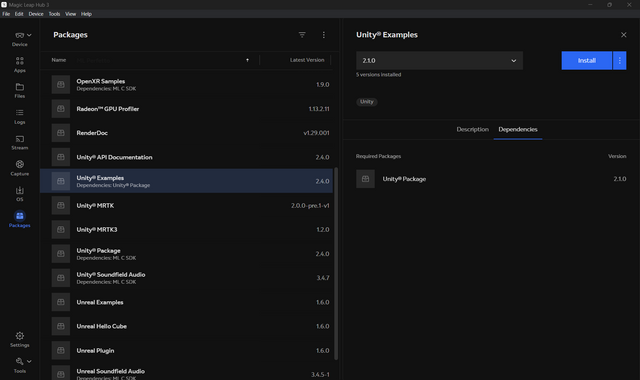
Open the Magic Leap Hub Package Manager
To access the Package Manager in the ML Hub:
- Open the ML Hub 3.
- Select Packages option from the left sidebar.
Downloading the Unity Examples package
To download the Unity Magic Leap Examples Project:
- Select the Unity Examples package.
- Click Install button in details section.
Install Unity Editor
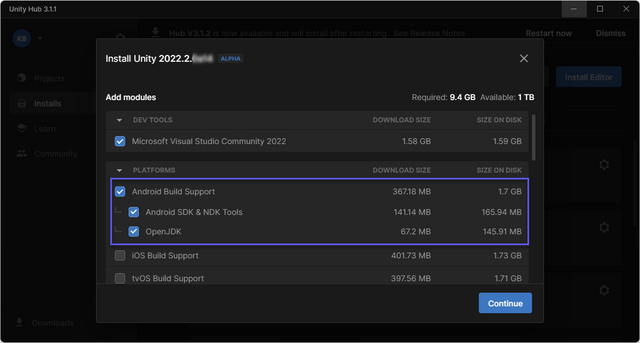
This section describes the process of installing the Magic Leap 2 compatible Unity Editor.It is recommended that developers use Unity Editor version Unity 2022.3 LTS or later to develop Magic Leap 2 Applications.
- Open the Unity Hub application
- Go to the Installs tab.
- Click the Install Editor button.
- In the Install Unity Editor window, select Unity 2022.3 LTS or a later version.
- In the Modules screen, select the following:
- Android Build Support
- Android SDK & NDK Tools
- OpenJDK.
- Select the Continue button.
- If prompted, accept the terms and conditions and click Install.
Next Steps
Create a new Unity Project
Learn which version of Unity and the project template to use when creating a new Magic Leap 2 application.
Unity Examples Project
After successfully creating a new application, check out the pre-configured Magic Leap Unity Examples Project to see some of Magic Leap's unique platform features.
Configure Project Settings
After creating a new Unity project, learn how to configure your project so you can build and deploy Magic Leap 2 applications.